Learnvia gives you flexibility when managing assignment deadlines. Whether you need to adjust a due date for the entire class or accommodate an individual student, here’s how to handle deadline extensions.
Extending a Deadline for the Entire Class
You can update due dates for any assignment at the class level, including deadlines that have already passed.
Steps
- Open your Learnvia Kit and go to the Plan tab.
- Locate the assignment with the deadline you want to change.
- Edit the date and/or time to extend it.
What happens when you extend a past deadline?
- Learnvia will automatically recalculate totals.
- If students completed additional work after the old deadline but before the new one, those points will now be included.
Extending a Deadline for an Individual Student
You may occasionally need to grant extra time to a single student for accommodations, illness, or other circumstances.
Steps
- Open your Learnvia Kit and go to the Plan tab.
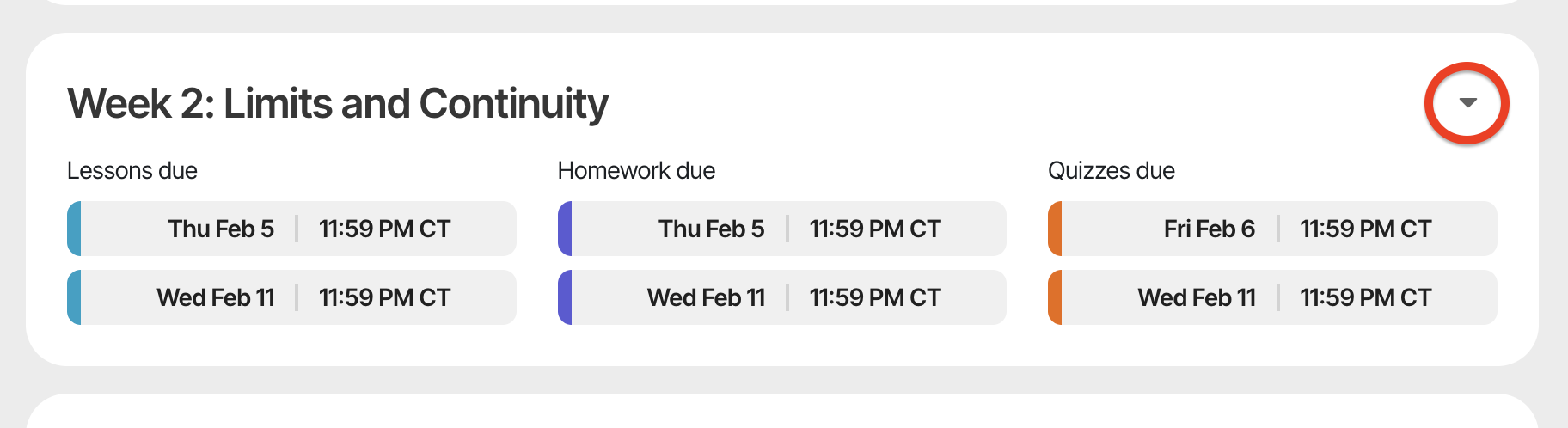
- Locate the week that contains the assignment with the deadline you want to change.
- Click the expand arrow in the top right corner.
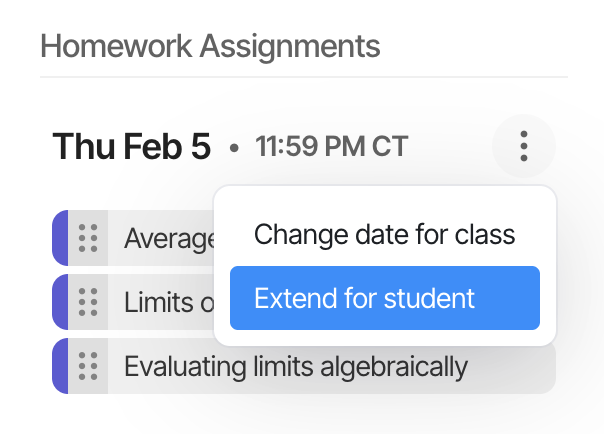
- Click the three dots next to the assignment with the deadline you want to change.
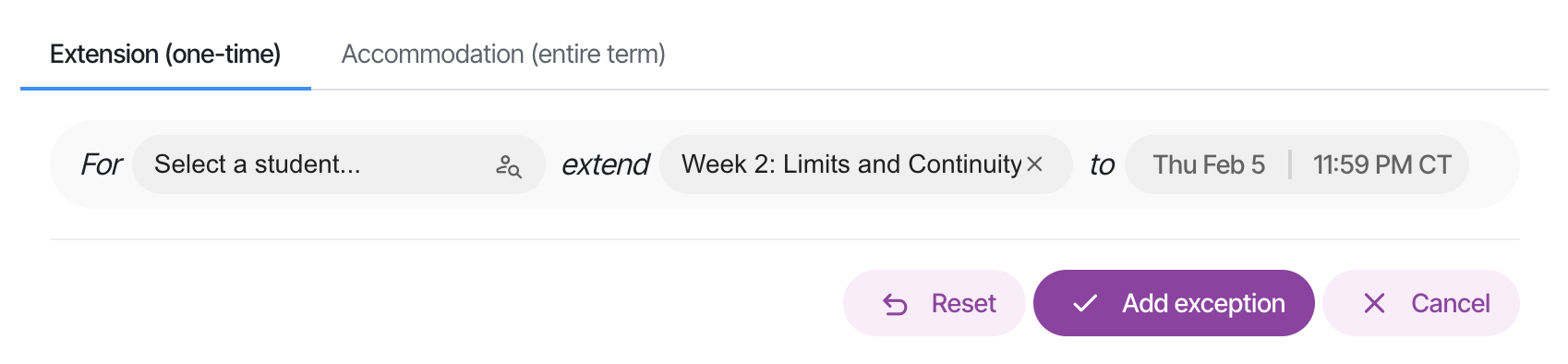
- Edit the deadline and save.
Was this article helpful?
That’s Great!
Thank you for your feedback
Sorry! We couldn't be helpful
Thank you for your feedback
Feedback sent
We appreciate your effort and will try to fix the article