If Learnvia is integrated into your institution’s LMS, no action is required. This guide is for students using Learnvia’s Canvas.
Steps to self-enroll:
- Click your instructor-provided enrollment link to self-enroll in Learnvia’s Canvas.
- Enter your institutional email. Use the same email you use with your school’s LMS (Canvas, Brightspace, Blackboard, etc.) to ensure your professor can upload your scores.
- Select "I am a new user".
- Enter your name as it appears within your school’s Canvas.
- Click "Enroll in Course".
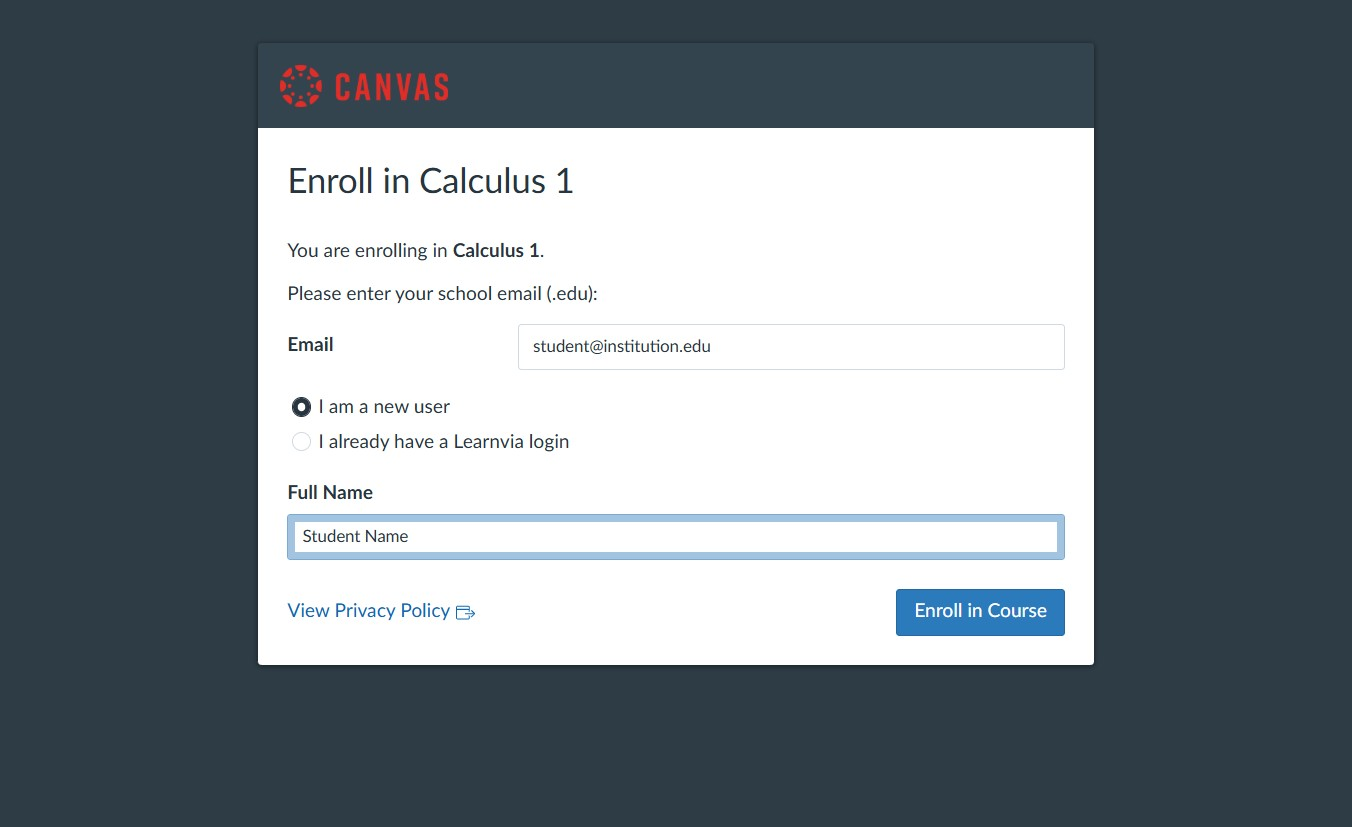 You will be taken into your Learnvia Canvas course, but your registration is not complete until you create a password. Check your email inbox and follow the next step!
 - Check your email for a message from Learnvia Canvas with the subject "Confirm Registration: Canvas".
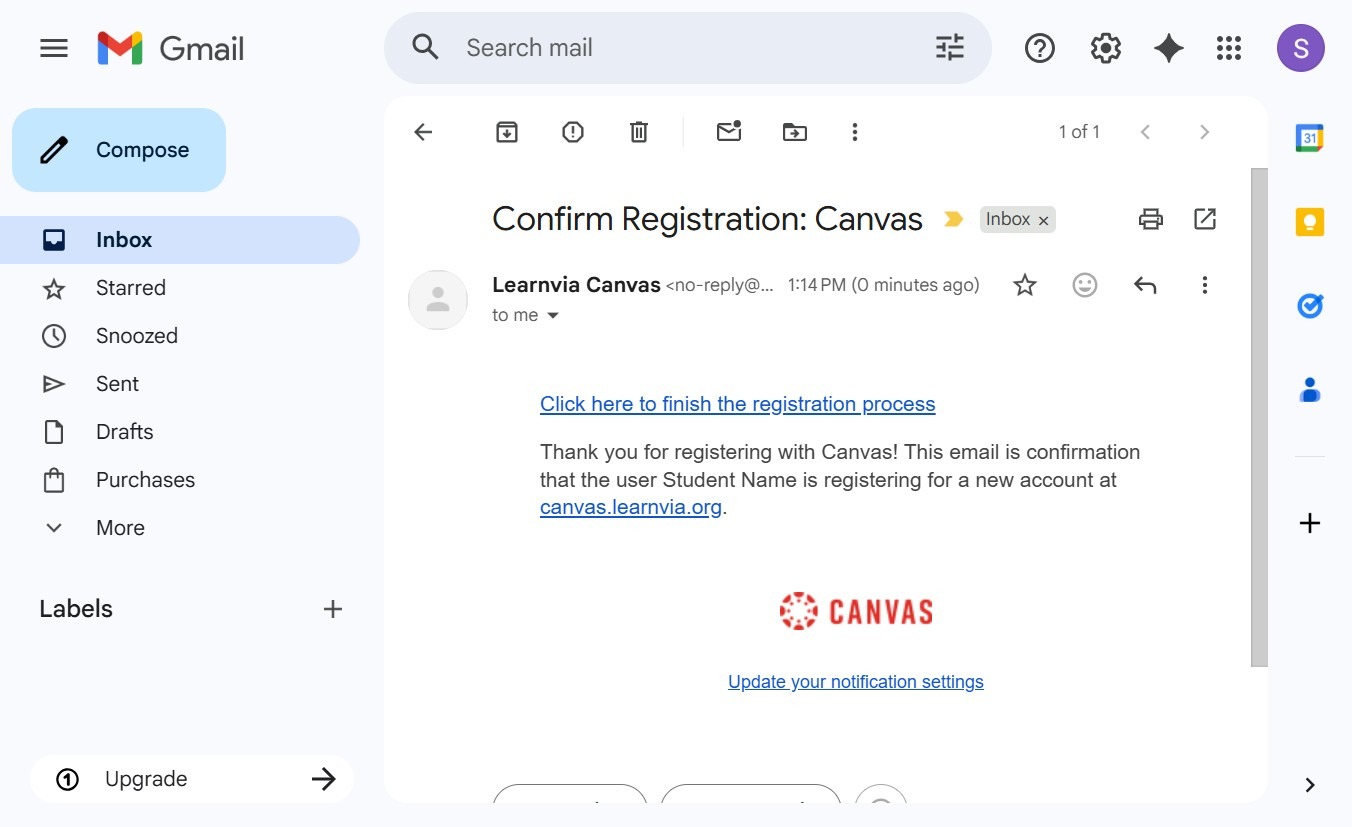
- Click the link to finish the registration process by creating a password. Your Learnvia Canvas account is separate from your institution’s Canvas account. The password set at this step will be used to access Learnvia for the rest of the course.
Was this article helpful?
That’s Great!
Thank you for your feedback
Sorry! We couldn't be helpful
Thank you for your feedback
Feedback sent
We appreciate your effort and will try to fix the article